How to Import Articulate Storyline Courses into ScormStack
Import an Articulate Storyline .story file or SCORM ZIP into editable ScormStack slides. Follow the steps, check supported content, and review beta limits.
You can import an Articulate Storyline course into ScormStack using either its original .story project or a published SCORM ZIP. ScormStack converts supported content into editable slides in Studio, its slide-based editor. You can then update text, replace media, and adjust supported interactions before publishing a new course.
Beta: Storyline import requires access to ScormStack's Studio imports. Conversion does not guarantee an exact copy of every Storyline feature or layout. Start with one representative course and review its behavior before migrating a library.
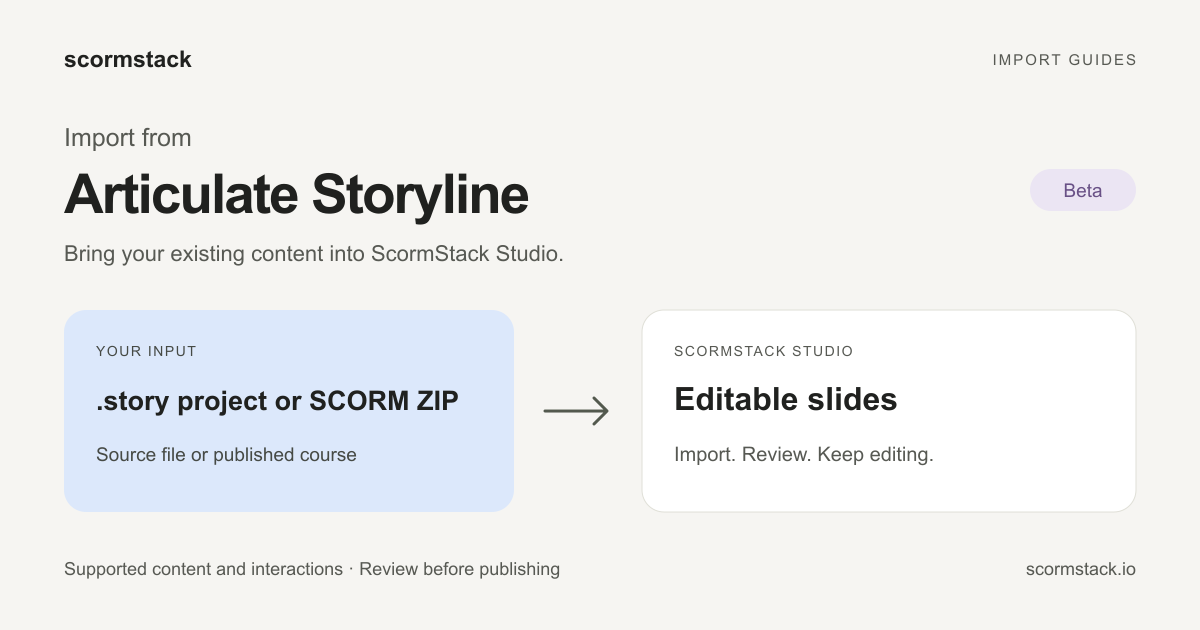
Which Storyline file should you import?
| What you have | What to upload | What to expect |
|---|---|---|
| The original Storyline project | The .story file |
Direct source import; no SCORM export is needed first |
| A published Storyline course | The complete SCORM .zip |
Conversion from the content available in the published package |
| Only a link to an LMS or Review 360 | Obtain the .story file or SCORM ZIP from the course owner |
A viewing link is not an input for this Storyline workflow |
A SCORM ZIP and a .story project are different inputs. Importing a published package into ScormStack creates a ScormStack course; it does not recover the original .story file. Keep your source files and original exports so you can compare the result.
If the course was authored in Rise 360, use the separate Rise import guide. Rise and Storyline use different content structures.
How to import a Storyline course
1. Prepare your .story project or SCORM package
For direct source import, save the project in Storyline and use the resulting .story file. Do not rename it to .zip or extract its contents.
If you want to use a SCORM export instead:
- Open the project in Storyline and choose Home → Publish.
- Select LMS / LRS and publish the entire course you intend to migrate.
- Choose SCORM 1.2 or SCORM 2004 and review the reporting and tracking options.
- Publish, then use Zip to save the complete output package.
These export controls are documented in Articulate's LMS/LRS publishing guide. Keep the package intact, including its images, audio, video, and course data. A single story.html file is not the complete course.
2. Open ScormStack's import dialog
Sign in to ScormStack and open Import SCORM from your course workspace. The file picker also accepts supported Storyline source projects despite the dialog's SCORM label.
Select your .story file or SCORM ZIP. ScormStack checks the archive and identifies its format. If you see a message that Storyline imports are not enabled for your account, contact ScormStack support about access to the Studio beta.
3. Start the import
Review any validation messages, then select Start Import. ScormStack processes the course and its media and opens the imported content in Studio when the operation succeeds. Media-heavy courses can take longer to process.
4. Check the editable result
Compare the imported course with the original. Begin with the slides that contain layers, branching, questions, or timed media. Editing a heading successfully does not establish that the course's scoring or navigation also matches.
What becomes editable after import?
The Storyline converter supports the following content, subject to the source project and its use of supported features:
| Storyline content | ScormStack result | What to check |
|---|---|---|
| Slides and ordinary layers | Editable slides and overlays | Order, opening and closing layers, and visibility |
| Text, pictures, and common shapes | Editable text, image placement and crop, and supported vector shapes | Fonts, text wrapping, cropping, and alignment |
| Packaged audio and video | Media used in the imported course | Playback, synchronization, and controls |
| Supported navigation and layer triggers | Native actions and conditions | Every relevant learner path |
| Supported variables and text-entry fields | Native variables and form controls | Initial values, inputs, and conditional behavior |
| Supported single- and multiple-choice interactions | Native assessment controls | Answer keys, attempts, feedback, and grading |
| Supported animations and states | Converted animation and state behavior | Timing, hover states, and visual differences |
This is a supported subset, not a compatibility promise for every Storyline version. Complex effects, custom scripts, unsupported conditions, and other question types can need adaptation or manual rebuilding. A trigger with an unsupported condition may be omitted rather than run without that condition.
Review the course before publishing
Use a short acceptance check with a real learner path:
- Content: compare slide order, text, images, layers, and downloadable or embedded resources.
- Navigation: test next/back buttons, branches, overlays, and return paths.
- Assessment: submit both correct and incorrect answers; check feedback, retries, and the result.
- Media and accessibility: review narration, timing, captions, text readability, and keyboard use.
- Delivery: after publishing the revised course, test launch, completion, score, and resume in your target LMS.
Importing course content does not transfer learners' existing LMS attempts or historical scores. Those belong to the LMS. See the SCORM publishing guide for ScormStack's delivery options.
Troubleshooting Storyline imports
| Problem | Next step |
|---|---|
| The input is rejected | Check that it is the actual .story project or complete published SCORM ZIP, not a renamed file or one file extracted from the package |
| A slide looks different | Compare fonts, crops, layers, and effects; adjust the converted elements in Studio |
| A button or branch behaves differently | Check its trigger and conditions and recreate unsupported behavior |
| A quiz looks right but scores differently | Verify the answer key, attempt limit, feedback, and completion settings before use |
| The import is unavailable | Check Studio beta access with support |
For an import that fails repeatedly, contact support with the source format, the error message, and the affected slide or interaction. A small reproducible example is easier to diagnose than a description of the whole course.
Try a Storyline migration
Open ScormStack and import one representative course. Review the slides and interactions that matter to your learners, then decide which parts to retain, refine, or rebuild.
Migrating other tools? Read the Genially import guide, iSpring import guide, or Easygenerator import guide.
FAQ
Can I import a .story file without exporting SCORM first?
Yes. ScormStack's beta Storyline importer accepts a supported .story project directly. It converts the project into editable Studio content. You need an account with access to Studio imports, and the imported course still needs review.
Can I edit a published Storyline SCORM package without the source file?
ScormStack can convert supported content from a complete Storyline SCORM ZIP into editable slides. This is a migration into ScormStack, not recovery of the original .story project, and unsupported content or behavior may require rebuilding.
Will all Storyline triggers, layers, and quizzes work after import?
No. Ordinary layers and supported triggers and choice interactions can be converted, but compatibility depends on the features used in the course. Check branches, conditions, answer keys, attempts, feedback, timing, and completion before publishing.
Do I need Storyline installed to upload an existing file?
You do not need to open Storyline to upload an existing supported .story file or SCORM ZIP to ScormStack. If you need to change the source project or create a fresh Storyline export, you will need access to Storyline.
Does importing a course migrate its learners and completion records?
No. The importer converts course content. Learner enrollments, past attempts, completion records, and scores remain in the source learning platform and require a separate migration process.