Libraries give teams a central place to create content once and reuse it across courses. Build shared blocks for recurring content, keep linked instances synchronized with their source, or use assessment questions from a library to create fixed and randomized Question Bank assessments.
Reusable blocks across courses
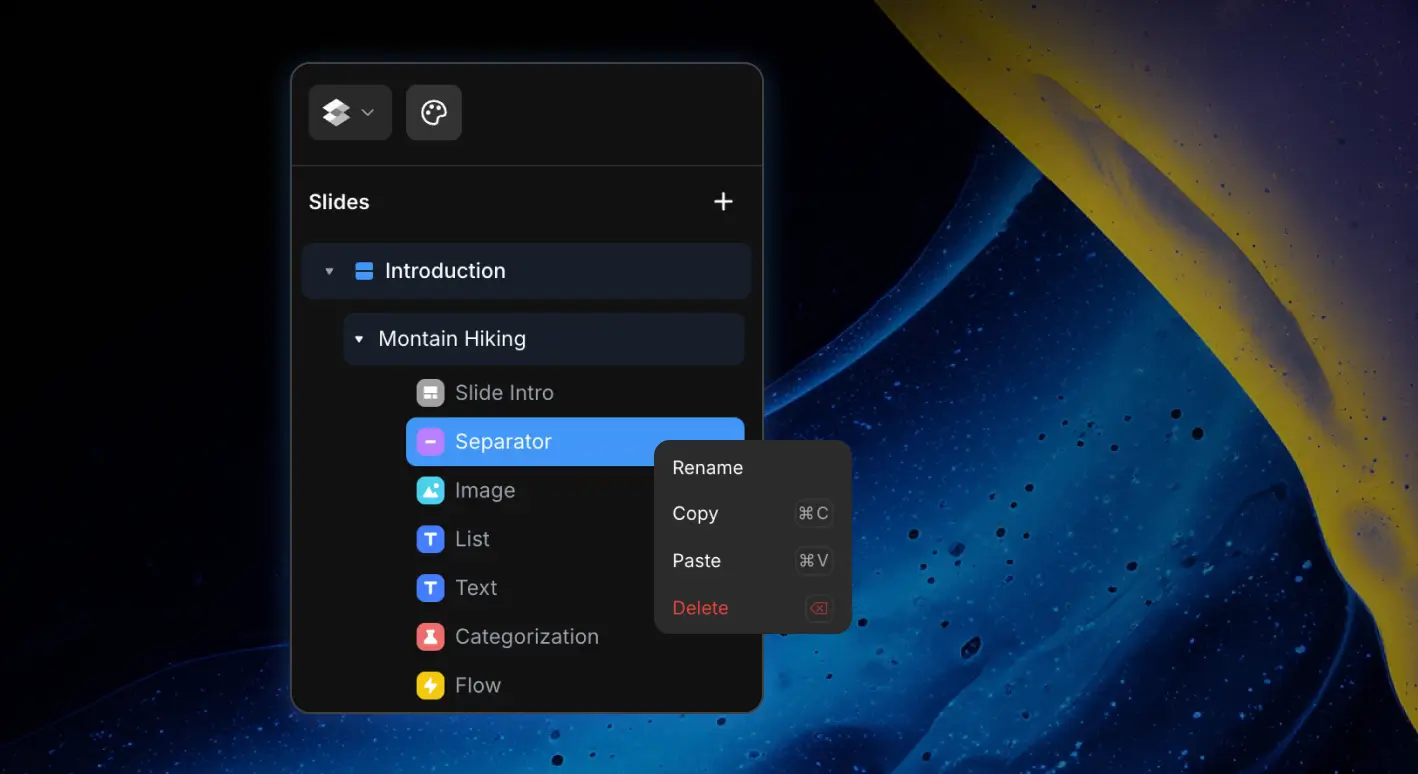
- Create once, reuse anywhere: Add content and assessment blocks to a library, organize them into sections and groups, then insert them into course slides.
- Linked by default: A library block stays connected to its source. Update the source block once and the change flows to every linked course, including previews and exports.
- Course override controls: Choose whether a library is Unlocked, allowing course authors to override content, formatting, and styles without changing the source, or Locked, keeping content centrally controlled while still allowing course-specific formatting and style settings.
- Safe local customization: Course overrides are stored separately from the library source, so one course can adapt a shared block without changing it everywhere else.
- Detach when needed: Convert a linked block into an independent course block whenever it should stop receiving library updates.
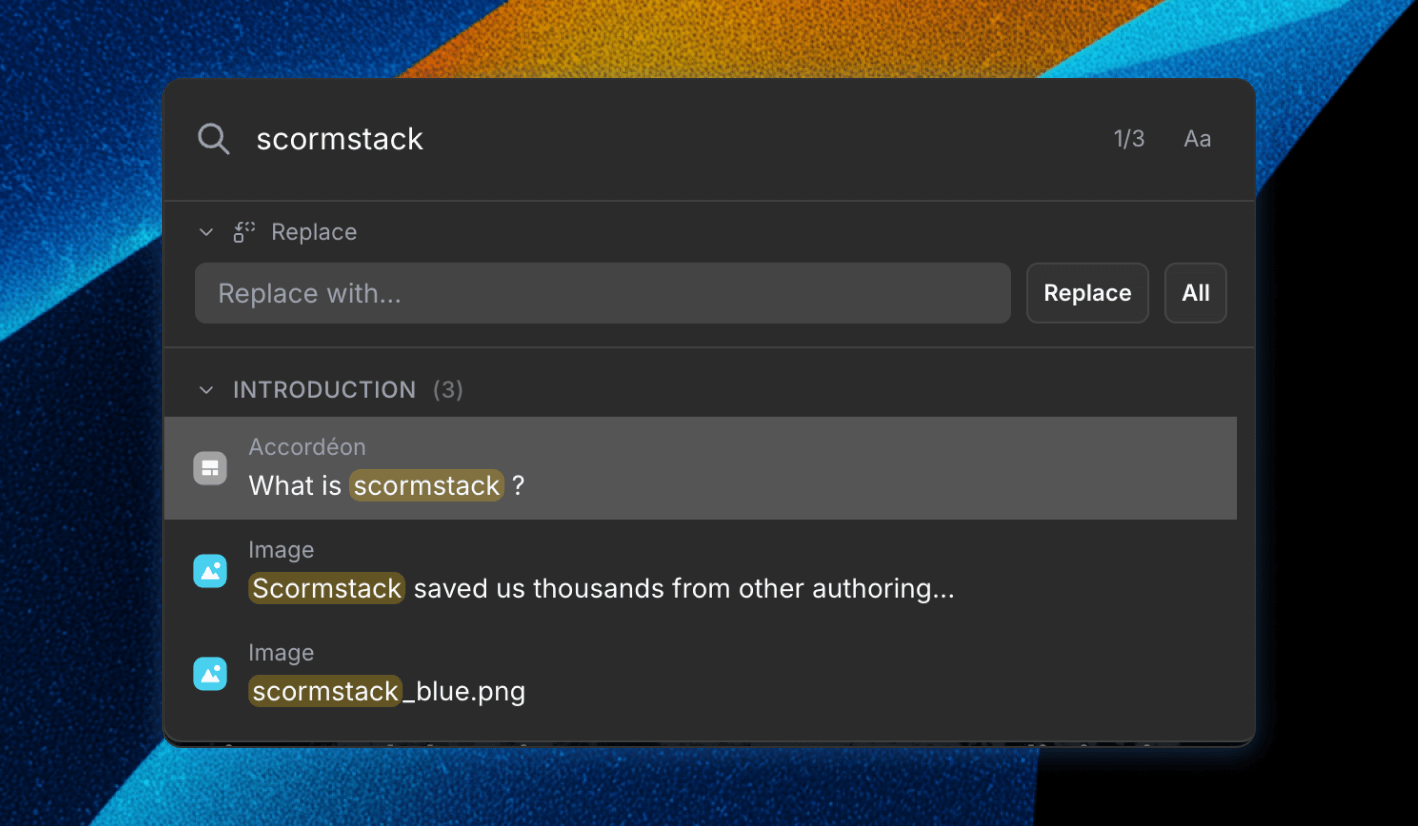
- Faster reuse: Search libraries and groups or return to recently used blocks to find shared content quickly.
Question banks
Libraries can also act as a shared source of assessment questions. Add assessment blocks to a library, then create a Question Bank assessment in any course and choose how learners receive questions.
- Manual selection: Pick the exact questions to include and arrange them in the order learners will see.
- Random draw: Set how many questions each learner receives from the full source or from a selected question pool.
- Flexible sources: Combine questions from multiple libraries and narrow each source to specific library groups.
- Reusable assessment content: Maintain questions in organized libraries and refresh a Question Bank source when the library content changes.
Why it matters
Libraries reduce duplicate authoring and make multi-course maintenance much safer. Teams can keep policies, product explanations, onboarding content, branded elements, and assessment questions in one reusable source while still deciding how much freedom each course author should have.